
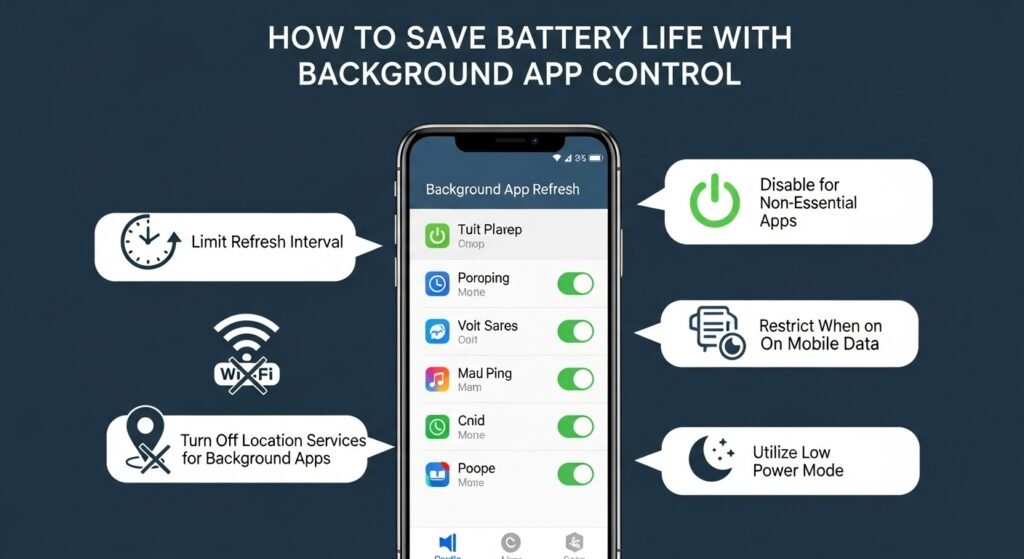
A new Android phone feels invincible—full battery lasting the entire day, everything running smoothly and quickly. But weeks later, you’re frantically searching for chargers by mid-afternoon. The culprit? Background apps quietly drain your battery while you work, communicate, or sleep. Background app control remains one of the most effective ways to extend your Android device’s battery life, preventing unnecessary power consumption from apps running invisibly in the background. This comprehensive guide reveals how background apps drain your battery, provides step-by-step instructions for controlling them, and shares additional optimization techniques that transform your device into a battery efficiency champion.
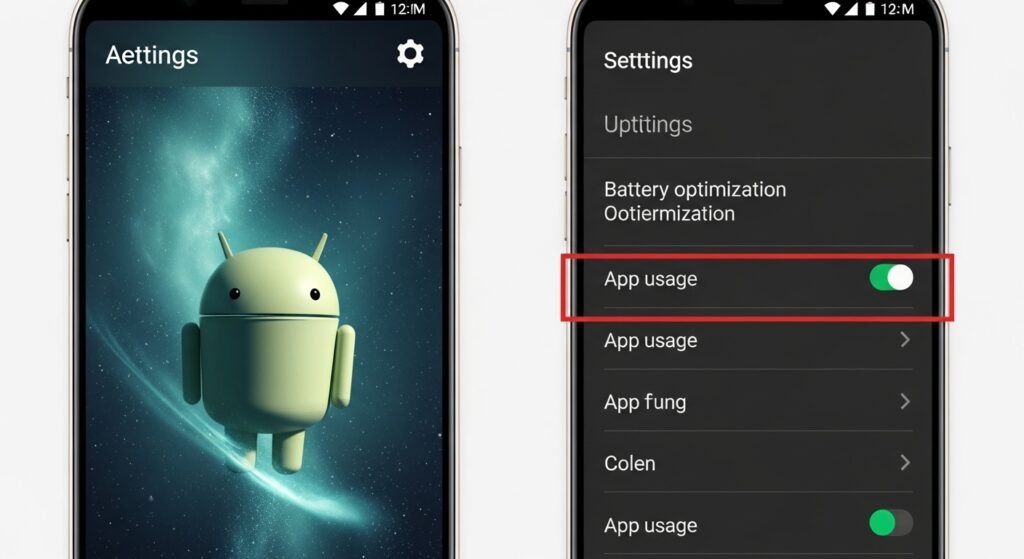
Understanding Background Apps and Battery Drain
Background apps are applications that continue running even when you’re not actively using them, performing tasks like content refresh, location tracking, push notifications, and data syncing. While many apps require background activity to function properly—email clients need to download new messages, messaging apps must receive notifications, navigation apps track your location—other apps waste power unnecessarily.
How Background Apps Drain Battery:
Constant Data Usage: Social media apps like Facebook, Instagram, and TikTok continuously refresh content in the background, keeping your processor and network connections active. This constant activity consumes power even when your phone sits in your pocket.
Location Services: Many apps access GPS positioning for convenience, but some apps request location data excessively. Apps running GPS in the background represent some of the biggest power drains. Even when GPS is disabled, apps may use WiFi and Bluetooth scanning for location accuracy, consuming significant battery.
Push Notifications and Syncing: Email apps, messaging platforms, and social media maintain constant server communication for real-time notifications. Cloud storage apps like Google Drive and fitness trackers sync data continuously.
Unoptimized Apps: Poorly coded or outdated apps may run inefficiently, consuming more power than necessary. Apps that haven’t been updated in months often drain battery faster.
The result: Your battery drains 30-50% faster than it should, cutting your daily runtime dramatically.
How to Check Which Apps Are Draining Your Battery
Before restricting background app activity, identify the culprits consuming excessive power. Android provides native battery monitoring, revealing exactly which apps waste the most energy.
Step-by-Step Guide:
- Open your Settings app
- Navigate to Battery or Battery and Device Care (naming varies by manufacturer)
- Select Battery Usage or Battery Saver
- Look for Battery Usage by App or a similar option
- Review the list, identifying apps that consume excessive power
On Samsung devices specifically, go to Settings > Battery and Device Care > Battery and tap Optimize Now to check apps with high background battery usage. You’ll see a detailed breakdown showing which apps consumed the most power over the past 24 hours.
Common Battery Hogs Include: Facebook, Instagram, Snapchat, Google Maps, TikTok, and poorly optimized gaming apps. If you notice unexpected apps consuming 5-10% of your battery daily, they warrant immediate attention.
Disabling Background App Refresh
The most direct way to prevent app background activity is to disable background app refresh entirely. This stops apps from updating content when you’re not using them.
For Most Android Devices:
- Open Settings
- Go to Apps & Notifications or Application Manager
- Select See All Apps or a similar option
- Choose the app you want to restrict
- Tap Mobile Data & WiFi or Background Restriction
- Select Don’t Allow Background Activity or toggle off background access
Important Consideration: Some apps require background activity to function properly. Email clients need background access to deliver new messages, messaging apps must refresh in the background for notifications, and navigation apps require constant location access. Be selective—disable background activity only for non-essential apps like social media and news apps.
Bulk Disabling: Rather than restricting individual apps, enable Battery Saver mode to restrict background activity for all apps simultaneously. This nuclear option works well when the battery is critically low.
Turning Off Location Services for Unnecessary Apps
Location tracking significantly drains battery, especially when apps request GPS positioning constantly. Many apps request location permissions they rarely need—shopping apps, social media, and weather apps.
Step-by-Step Guide:
- Open Settings
- Navigate to Location or Privacy & Security > Location Services
- Select App Permissions
- For each app, change permission to “While Using” or “Never” depending on whether you need location tracking
Optimize Location Accuracy:
Additionally, disable location accuracy features that consume unnecessary battery:
- Go to Settings > Location
- Find Location Accuracy or Improve Location Accuracy
- Disable WiFi Scanning and Bluetooth Scanning
These features enhance location accuracy but drain battery even when GPS is disabled. Disabling them typically prevents noticeable accuracy loss.
Adjusting Push Notifications
Constant notifications keep your phone active even during sleep, draining the battery significantly. Not every app needs to send notifications.
To Customize Notifications:
- Open Settings
- Go to Apps & Notifications or Notification Settings
- Select Notifications
- For each app, toggle notifications off if they’re non-essential
Alternatively, modify notification settings within each app individually. Many apps, like social media platforms, receive far too many notifications by default. Disable all non-essential notifications, keeping only critical alerts.
Batch Management: Some devices offer notification management through Battery Settings. Samsung phones let you “put apps to sleep,” preventing notifications entirely.
Enabling Adaptive Battery
Adaptive Battery represents Android’s intelligent background management system, learning your app usage patterns and prioritizing apps you frequently use while restricting background activity for rarely-used apps.
To Enable Adaptive Battery:
- Open Settings
- Navigate to Battery or Battery and Device Care
- Find Adaptive Battery or Adaptive Preferences
- Toggle to On
The system learns your behavior over several days, then automatically restricts background activity for apps you rarely open. This balanced approach maintains essential functionality while preventing unnecessary drain from unused apps.
Using Battery Saver Mode Strategically
Battery Saver mode restricts background processes, limits visual effects, reduces performance, and disables non-essential features to maximize runtime.
To Enable Battery Saver:
Google Pixel Devices:
- Open Settings > Battery
- Select Battery Saver and toggle On
- Optionally set a schedule for automatic activation at specific battery levels
Samsung Devices:
- Open Settings > Battery and Device Care
- Toggle Power Saving Mode on
- Choose between standard or “Ultra Power Saving” for more aggressive restrictions
Effects of Battery Saver Mode:
- Background apps are restricted unless critical
- Location services are limited
- Push notifications are delayed
- Visual effects are reduced or disabled
- Always-on display is turned off
- Dark theme is enabled
- Performance may be reduced in non-critical situations
Important: Use Extreme Battery Saver only when the battery is critically low, as it severely restricts functionality, including email delivery and messaging notifications.
Display Optimization—The Biggest Battery Consumer
Your screen consumes 30-50% of your device’s total battery power. Optimizing display settings delivers dramatic battery improvements.
Reduce Screen Brightness:
- Swipe down from the top of your screen to open Quick Settings
- Adjust the Brightness Slider to comfortable levels
- Avoid maximum brightness except when outdoors in bright sunlight
Enable Adaptive Brightness:
- Open Settings > Display & Brightness
- Toggle Adaptive Brightness or Automatic Brightness on
This feature automatically adjusts brightness based on ambient light, preventing unnecessary high brightness indoors. The battery savings are substantial.
Enable Dark Mode:
For devices with OLED or AMOLED screens, dark mode turns off individual pixels displaying black, significantly reducing power consumption:
- Open Settings > Display
- Toggle Dark Mode on
- Schedule dark mode activation at specific times
OLED screens show approximately 15-20% better battery life with dark mode enabled on average.
Reduce Screen Timeout:
- Go to Settings > Display
- Select Screen Timeout or Lock Screen
- Choose 30 seconds or 1 minute instead of the default 5-10 minutes
Your screen turns off faster when not in use, preventing unnecessary power consumption.
Reduce Refresh Rate:
Modern phones offer 90Hz, 120Hz, or 165Hz refresh rates for smoother scrolling. Higher refresh rates consume more battery:
- Open Settings > Display
- Find Refresh Rate or Smoothness
- Select 60Hz for maximum battery life
You’ll notice minimal differences in daily usage—most content displays at 60Hz perfectly smoothly.
Turning Off Unnecessary Connectivity
WiFi, Bluetooth, and mobile data keep your device constantly searching for signals, draining battery even when not in use.
To Optimize Connectivity:
- WiFi: Only enable when needed. Keep disabled when on mobile data
- Bluetooth: Disable when not actively using wireless earbuds or devices
- Mobile Data: Use WiFi when available, as it consumes less power than cellular
- GPS: Keep disabled when not actively navigating
- Airplane Mode: Enable when traveling to weak coverage areas, preventing constant signal searching
A phone constantly searching for signals drains battery 40% faster than one with connectivity disabled.
Restricting Battery-Hungry Apps
Rather than disabling apps entirely, restrict their permissions and activity without removing functionality.
To Restrict Individual App Permissions:
- Open Settings > Apps & Notifications
- Select the app to restrict
- Tap Permissions
- Disable unnecessary permissions like:
- Camera (for apps that don’t need it)
- Microphone
- Contacts
- Photos/Videos
- Location
For Example, Disable location access for shopping apps, camera/microphone for email clients, and photo access for messaging apps that rarely need them.
Advanced Optimization Through Developer Options
Advanced users can access Developer Options for additional battery optimizations.
To Access Developer Options:
- Open Settings > About Phone
- Tap Build Number rapidly 7 times
- Go back to Settings > System > Developer Options
Recommended Developer Settings for Battery Optimization:
- Limit Background Processes: Restrict how many background processes run simultaneously
- Don’t Keep Activities: Automatically close apps when leaving them
- Disable Animations: Reduces GPU usage and power consumption
- Enable Force Dark Mode: Forces dark mode on all apps with OLED screens
- Disable Smooth Display: Reduces CPU usage
Note: Only enable these if you’re comfortable with advanced settings, as they may affect app functionality.
Charging Best Practices for Long-Term Battery Health
Extending daily battery life works alongside preserving long-term battery health through smart charging habits.
Optimal Charging Practices:
- Avoid Overcharging: Unplug at 80-90% if possible, or limit charging to full only occasionally
- Avoid Deep Drain: Don’t let the battery drop to 0% regularly. Keep it between 20-80% when possible
- Use Original Chargers: Non-certified chargers damage batteries and charge inefficiently
- Avoid Heat: Don’t use your phone while charging in hot environments
- Keep Device Cool: Remove cases while charging in warm weather
- Charge Regularly: Don’t drain to critically low levels unnecessarily
Following these practices extends battery lifespan by 1-2 years compared to careless charging.
Creating Your Personal Battery Optimization Plan
The most effective battery optimization approach combines multiple techniques rather than relying on single changes.
Recommended Starting Point:
- Day 1: Enable Adaptive Battery and Battery Saver Mode
- Day 2: Reduce screen brightness and enable adaptive brightness and dark mode
- Day 3: Disable background refresh for non-essential apps
- Day 4: Turn off location services for unnecessary apps
- Day 5: Disable Bluetooth and WiFi when not needed
After implementing these changes, most users report 30-50% longer battery life. Continue monitoring battery usage stats and restrict additional apps as needed.
Track Progress:
- Note your battery percentage at specific times before optimization
- After one week of optimization, compare battery percentages
- Calculate the battery life extension percentage
Most devices extend battery life from 12-14 hours to 18-24 hours through comprehensive optimization.
Conclusion
Background app control represents the most effective way to extend your Android device’s battery life without sacrificing core functionality. By systematically restricting unnecessary background activity, optimizing display settings, disabling location services for non-critical apps, and enabling adaptive battery, you can dramatically extend daily runtime.
The 30-50% battery life improvements possible through background app management prove that smartphone battery drain isn’t inevitable. Every app you restrict, every setting you optimize, and every permission you disable contributes to extended runtime.
Start with the basics—enable Battery Saver mode, adjust display settings, and disable background refresh for unnecessary apps. As you become comfortable with the optimization process, explore advanced settings and developer options. Within days, you’ll notice your phone lasting significantly longer on each charge.
Your Android device’s battery potential is waiting to be unlocked—take control of background apps today and reclaim hours of daily computing. No more mid-afternoon charger searches, just stable, reliable power lasting through your entire day.