

Few things frustrate Android users more than WiFi that refuses to connect, constantly disconnects, or crawls at painfully slow speeds. Whether you’re trying to stream videos, download files, or simply browse the web, an unstable WiFi connection disrupts your entire mobile experience. The good news? Most WiFi connection problems stem from fixable software or configuration issues rather than hardware failures. This comprehensive troubleshooting guide walks you through twelve proven solutions, arranged from the simplest quick fixes to more advanced techniques, ensuring you can diagnose and resolve virtually any Android WiFi issue.
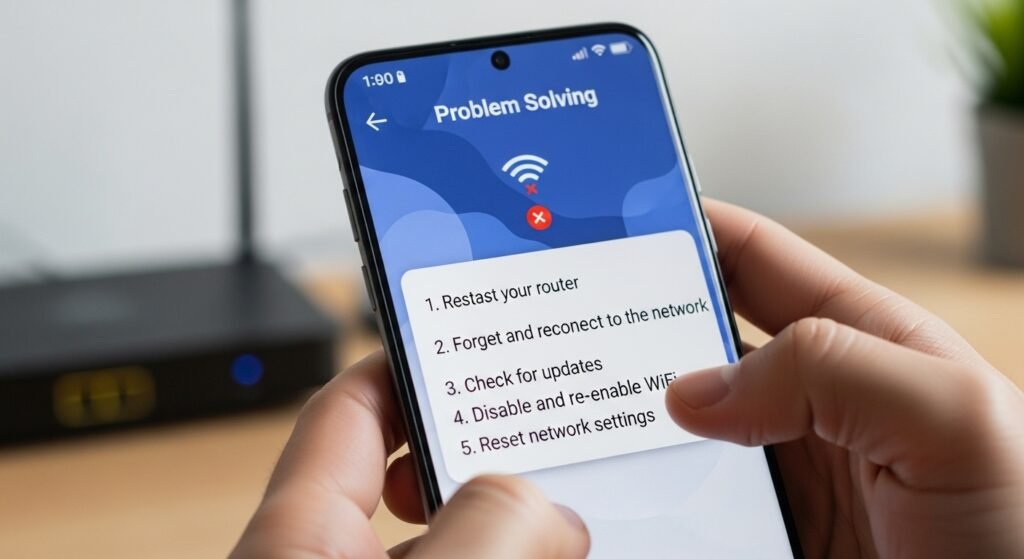
Understanding Common WiFi Connection Issues
Before diving into solutions, understanding the types of WiFi problems helps you identify which fixes to try first.
Connection Won’t Establish: Your Android device sees the WiFi network but refuses to connect, or the connection fails immediately after entering the password.
Constant Disconnections: Your phone connects successfully but frequently disconnects and reconnects, providing unreliable service.
Slow Speeds: The connection works, but transfers data painfully slowly, making streaming unwatchable and downloads take hours.
Network Not Visible: Your WiFi network doesn’t appear in the available networks list despite the router being powered on and broadcasting.
Authentication Failure: Your device says “Can’t connect to network” or shows authentication errors when attempting to connect.
Understanding which issue you’re experiencing helps select the most appropriate solutions.
Solution 1: Restart Your Android Device (Quick Fix)
The absolute first step when experiencing WiFi problems is restarting your Android phone.
Why Restarting Works:
Restarting clears temporary WiFi connection states, refreshes the network driver, closes background processes consuming network resources, and provides a clean slate for WiFi to reconnect properly.
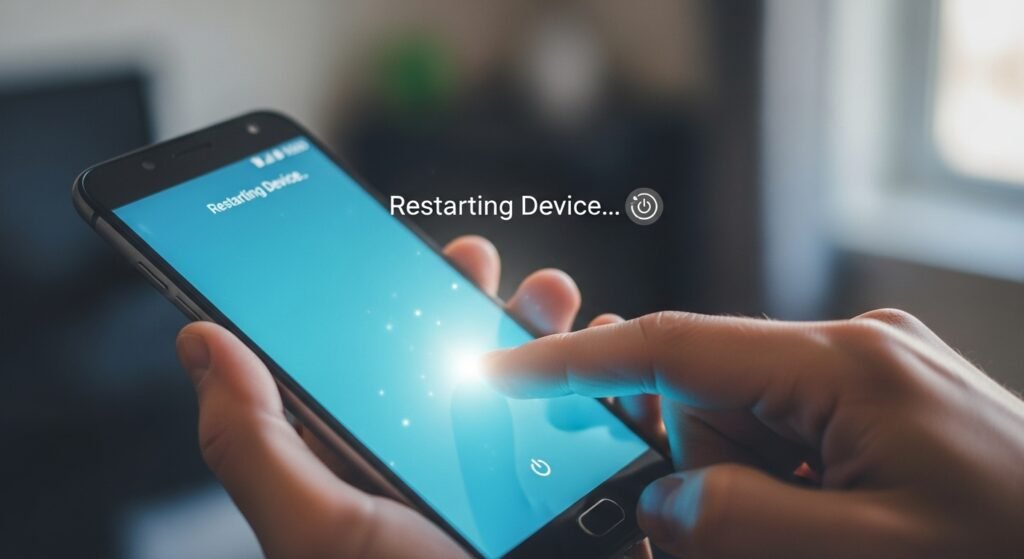
How to Restart:
- Press and hold the Power button
- Tap Power off when the power menu appears
- Confirm shutdown by tapping Power off again
- Wait 30 seconds for a complete shutdown
- Press and hold the Power button again to power on
For Devices Without Physical Power Buttons:
- Swipe down with two fingers from the top of the screen
- Tap the Power icon
- Select Restart
- Confirm the restart
Test WiFi connectivity after restarting—many temporary issues resolve with this simple step.
Solution 2: Ensure WiFi Is Enabled
Sometimes the simplest problems get overlooked—verify that WiFi is actually turned on.
How to Check:
- Open Settings
- Navigate to Wireless and Networks or Connections
- Tap WiFi
- Ensure the WiFi toggle is ON (showing blue or green)
If WiFi is off, toggle it on. Wait 5-10 seconds for your phone to scan for available networks.
Quick Toggle Method:
Swipe down twice from the top of your screen to open the Quick Settings panel, then tap the WiFi icon to toggle it on if it’s currently disabled.
Solution 3: Check Airplane Mode Status
Airplane mode disables all wireless connections, including WiFi. Accidentally enabling it is surprisingly common.
How to Check Airplane Mode:
- Swipe down from the top of the screen twice to open Quick Settings
- Look for the Airplane icon—if highlighted, Airplane mode is enabled
- Tap the airplane icon to disable it
Alternatively:
- Open Settings
- Navigate to Network & Internet or Connections
- Tap Airplane Mode or Flight Mode
- Toggle OFF
Airplane Mode Toggle Trick (fixes temporary WiFi glitches):
Even if Airplane mode is already off, enable it for 5-10 seconds, then disable it again. This resets wireless connections, often resolving connectivity issues.
Solution 4: Move Closer to Your Router
WiFi signal strength decreases with distance and obstacles.
Check Signal Strength:
Look at the WiFi icon in your status bar—the number of bars indicates signal strength.
- 1 bar: Very weak signal, move much closer to the router
- 2-3 bars: Weak to moderate signal, consider moving closer
- 4+ bars: Strong signal, position is generally fine
Optimal Router Placement:
Move to within 30 feet of your router for strong, reliable signals. Thick walls, metal appliances, and other electronics create interference—position yourself with a clear line of sight to the router when possible.
If the signal is consistently weak, consider relocating your router to a more central, elevated position.
Solution 5: Forget and Reconnect to the Network
Saved network configurations sometimes become corrupted, causing connection failures. Forgetting the network clears these corrupted settings.
Step-by-Step Guide:
- Open Settings
- Navigate to Network & Internet or Connections
- Tap WiFi
- Find your WiFi network in the list
- Tap and hold the network name, or tap the settings icon next to it
- Select Forget Network or Remove
Reconnect to the Network:
- In the WiFi list, tap your network name
- Enter the password carefully—check capitalization and special characters
- Tap Connect
Wait 5-10 seconds for the connection to establish. This solution resolves many connection issues caused by corrupted network configurations.
Solution 6: Restart Your WiFi Router
Sometimes the issue isn’t your phone—your router may need restarting.
How to Restart Your Router:
- Locate the power cable on the back or side of your router
- Unplug the power cable from the outlet
- Wait 30 seconds—this allows the router to fully power down
- Plug the power cable back in
- Wait 1-2 minutes for the router to fully restart and reconnect
The lights on the router will go dark during shutdown, then illuminate as it restarts. Once the lights stabilize, try reconnecting your Android device.
Alternative: If your router has a physical power button, press and hold it for 10 seconds to power down, wait 30 seconds, then press it again to power on.
Solution 7: Verify the Correct Password
Connection failures often result from incorrect WiFi passwords.
How to Check Your Password:
- Default WiFi credentials are printed on your router’s label (usually on the back or bottom)
- Check any documentation provided with your router
- Log in to your router’s admin panel (typically at 192.168.1.1) to view or change the password
Password Entry Tips:
WiFi passwords are case-sensitive, meaning capital and lowercase letters matter. Enter the password exactly as specified, including special characters.
If you’re unsure of the password, reset your router to factory settings (consult your router’s manual for instructions), which resets the password to the default printed on the label.
Solution 8: Reset Network Settings
If multiple WiFi networks cause problems or previous solutions haven’t worked, resetting network settings provides a comprehensive reset.
Important Warning: Resetting network settings removes all saved WiFi networks and passwords—you’ll need to reconnect manually, so write down your WiFi password first.
How to Reset Network Settings:
For Most Android Devices:
- Open Settings
- Navigate to System or General Management
- Tap Reset or Reset Options
- Select Reset Wi-Fi, Mobile & Bluetooth or Reset Network Settings
- Tap Reset to confirm
For Samsung Devices:
- Go to Settings
- Tap General Management
- Select Reset
- Tap Reset Network Settings
- Confirm the reset
Your device will restart after the reset. Once restarted, reconnect to your WiFi by entering your password.
When to Use This Solution: Use this only after simpler fixes (restarting, forgetting networks) haven’t worked, as it clears all network configurations.
Solution 9: Clear WiFi Cache
Cached WiFi data can become corrupted or outdated, causing connection problems.
How to Clear WiFi Cache:
- Open Settings
- Navigate to Apps or Application Manager
- Tap the three-dot menu (top right corner)
- Select Show System Apps to reveal system applications
- Find and tap WiFi
- Tap Storage or Storage & Cache
- Tap Clear Cache
Important: Clearing cache removes temporary data but doesn’t delete your saved WiFi networks or passwords.
Restart your phone after clearing cache, then test WiFi connectivity.
Solution 10: Disable Power Saving Mode
Power Saving or Battery Saver mode restricts background network activity to conserve battery, potentially disrupting WiFi connectivity.
How to Disable Power Saving Mode:
Quick Settings Method:
- Swipe down twice to open Quick Settings
- Look for Battery Saver, Power Saving Mode, or Low Power Mode
- Tap to disable it
Settings Method:
- Open Settings
- Navigate to Battery or Device Care
- Tap Battery Saver or Power Saving Mode
- Toggle OFF
Power saving mode occasionally interferes with WiFi—disabling it can resolve connection issues.
Solution 11: Update Android Operating System
Outdated Android versions contain WiFi bugs that newer versions fix.
How to Check for Updates:
- Open Settings
- Navigate to System or About Phone
- Tap System Update or Software Update
- Tap Check for Updates
If an update is available:
- Tap Download (if not already downloaded)
- Tap Install
- Your device will restart and install the update
Why Updates Matter: Android developers continuously patch WiFi connectivity bugs—running the latest version often resolves persistent connection issues.
Solution 12: Check for Interfering Apps
Occasionally, third-party apps interfere with WiFi connectivity. Apps with aggressive network requests or conflicts can destabilize your connection.
Identify Problem Apps (using Safe Mode):
Safe Mode disables all third-party apps, allowing you to determine if an installed app causes problems.
How to Boot into Safe Mode:
- Press and hold the Power button
- Touch and hold Power off
- When a pop-up appears, select or tap Safe Mode
- Tap OK to confirm
Your device will restart in Safe Mode—third-party apps are disabled.
Test WiFi in Safe Mode:
Try connecting to WiFi in Safe Mode. If it works reliably, a third-party app is causing problems.
Identify the Culprit:
Exit Safe Mode by restarting normally. Uninstall recently installed apps one at a time, testing WiFi after each uninstallation. When WiFi works reliably after uninstalling a specific app, you’ve identified the problem app.
Exit Safe Mode:
Power off your device and turn it back on normally to exit Safe Mode.
Additional Troubleshooting Steps
Check Your Phone Case: Metal or thick phone cases can block WiFi signals—remove your case during troubleshooting to see if it improves connectivity.
Look for Interference: Keep your phone away from microwaves, cordless phones, baby monitors, and other devices operating on 2.4GHz frequencies, which can interfere with WiFi.
Check Router Channel: Your router broadcasts on specific channels—interference from neighboring networks may require changing your router’s channel (consult your router’s manual).
Ensure Proper Router Placement: Place your router in an open, elevated location away from walls and metal objects.
When to Contact Your ISP or Seek Professional Help
If you’ve tried all twelve solutions and WiFi still doesn’t work reliably, consider:
- Contact Your Internet Service Provider (ISP): They can verify your connection on their end and check for service outages.
- Contact Router Manufacturer: If the router is defective, the manufacturer can provide support or a replacement.
- Visit a Technician: If your Android device won’t connect to any WiFi network, hardware damage may require professional repair.
Prevention Tips
Implement these practices to prevent future WiFi problems:
- Restart your router weekly to clear temporary issues
- Keep your Android OS updated to receive WiFi bug fixes
- Position your router optimally for strong signal coverage
- Avoid interference from other wireless devices
- Update app software to prevent app-related WiFi conflicts
- Maintain adequate distance from the router
Conclusion
Android WiFi connection problems frustrate users but rarely indicate serious hardware failures. Most issues stem from fixable software problems like disabled WiFi, incorrect passwords, corrupted network configurations, or router glitches.
By systematically working through these twelve solutions—from simple restarts to password verification, network forgetting, router rebooting, and advanced network settings resets—you can resolve virtually any WiFi connectivity issue. Start with quick fixes requiring just seconds, then progress to more involved solutions only if necessary.
Most users find their WiFi problems resolved within the first five solutions, rarely needing advanced troubleshooting. Implement these fixes today and restore your Android device to reliable, fast WiFi connectivity. Say goodbye to disconnections and frustrating connection failures—stable, dependable internet is waiting.